Terraform drift detection with GitHub Actions, every day
Run terraform plan on a schedule in GitHub Actions with read-only OIDC access, and open an issue when someone changes AWS by hand. Full workflow and IAM policy.
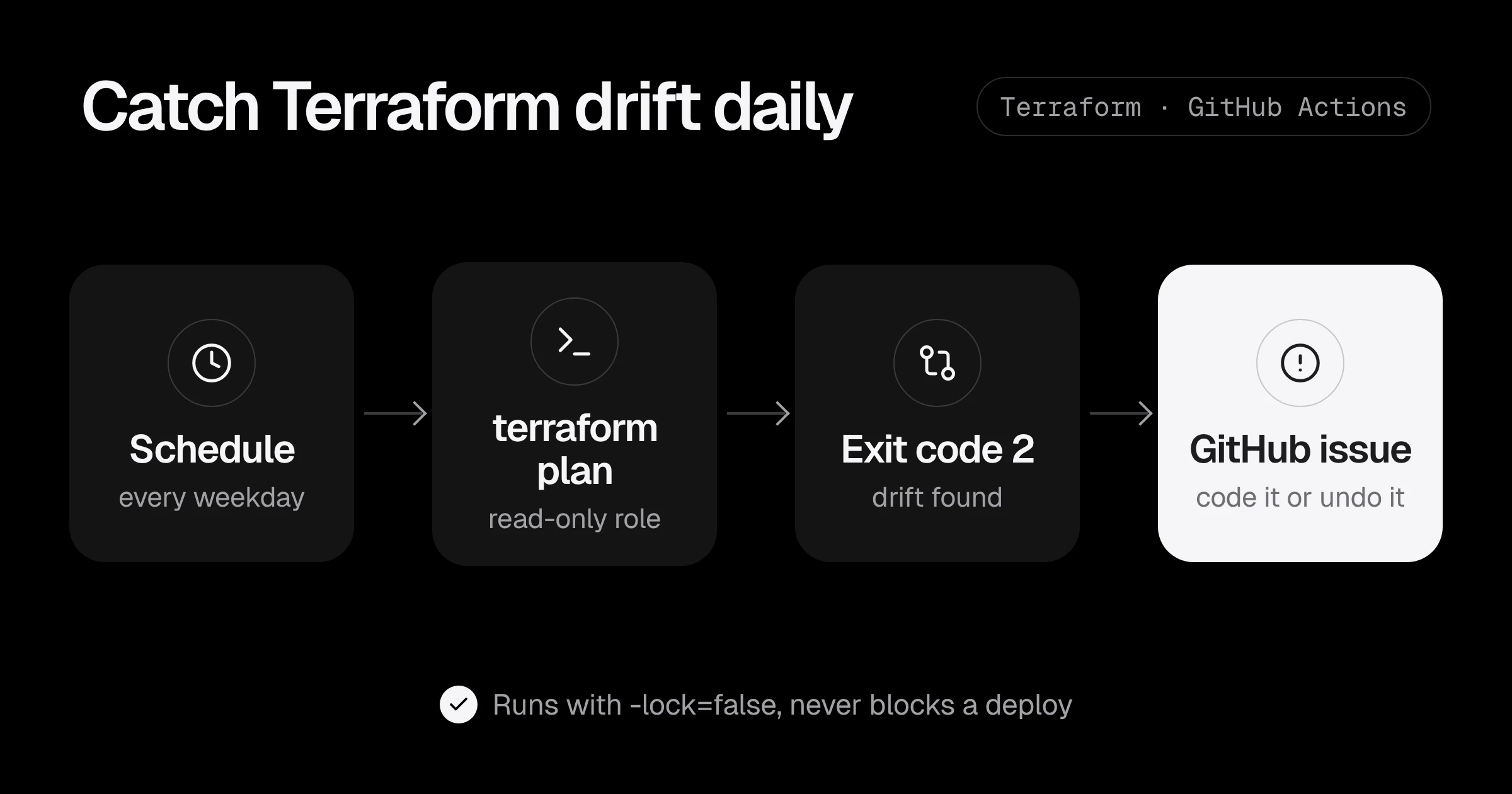
Terraform only protects you if the code is the truth. The day someone opens a security group “just for a minute” in the console, or bumps an instance size by hand during an incident, your code and your AWS account stop matching. Nobody notices until the next terraform apply, which quietly puts things back the way the code says, often at the worst moment.
That gap is called drift, and catching it is cheap. A scheduled GitHub Actions job runs terraform plan every morning with a read-only role and opens an issue when the plan finds a difference. This post gives you the whole setup: the IAM role, the workflow, and what to do when it fires.
How a drift check works
terraform plan compares three things: your code, the state file, and the real resources in AWS. With -detailed-exitcode, it tells you the result through its exit code:
| Exit code | Meaning |
|---|---|
| 0 | No changes: code, state and AWS agree |
| 1 | Error: the plan could not run |
| 2 | Changes: something differs, which is drift if nobody changed the code |
Run on the main branch, after all merged changes have been applied, a 2 means somebody changed AWS outside Terraform.
Step 1: a read-only role for the drift check
The check only reads, so its role should only read. Use GitHub’s OIDC provider (no AWS keys stored anywhere; see GitHub Actions to AWS with OIDC if you do not have it yet) and a role that only your repository’s drift workflow can assume:
data "aws_iam_policy_document" "drift_trust" {
  statement {
    actions = ["sts:AssumeRoleWithWebIdentity"]
    principals {
      type        = "Federated"
      identifiers = [aws_iam_openid_connect_provider.github.arn]
    }
    condition {
      test     = "StringEquals"
      variable = "token.actions.githubusercontent.com:aud"
      values   = ["sts.amazonaws.com"]
    }
    condition {
      test     = "StringEquals"
      variable = "token.actions.githubusercontent.com:sub"
      values   = ["repo:acme/infrastructure:ref:refs/heads/main"]
    }
  }
}

resource "aws_iam_role" "drift" {
  name               = "terraform-drift-check"
  assume_role_policy = data.aws_iam_policy_document.drift_trust.json
}

resource "aws_iam_role_policy_attachment" "drift_readonly" {
  role       = aws_iam_role.drift.name
  policy_arn = "arn:aws:iam::aws:policy/ReadOnlyAccess"
}
ReadOnlyAccess can read almost everything, which a plan needs. The role also needs to read the state, so add a small policy for the state bucket and its KMS key:
resource "aws_iam_role_policy" "drift_state" {
  name = "read-terraform-state"
  role = aws_iam_role.drift.id
  policy = jsonencode({
    Version = "2012-10-17"
    Statement = [
      {
        Effect   = "Allow"
        Action   = ["s3:GetObject", "s3:ListBucket"]
        Resource = ["arn:aws:s3:::acme-terraform-state", "arn:aws:s3:::acme-terraform-state/*"]
      },
      {
        Effect   = "Allow"
        Action   = ["kms:Decrypt"]
        Resource = [aws_kms_key.terraform_state.arn]
      }
    ]
  })
}
If your state uses a KMS key, ReadOnlyAccess alone is not enough to read it; the kms:Decrypt statement fixes that. If ReadOnlyAccess is too broad for your security rules, start from it and remove services you do not use.
Step 2: the scheduled workflow
Save this as .github/workflows/drift.yml:
name: Terraform drift check

on:
  schedule:
    - cron: "0 4 * * 1-5" # 04:00 UTC, Monday to Friday
  workflow_dispatch: {}

permissions:
  id-token: write # OIDC to AWS
  contents: read
  issues: write   # open an issue when drift is found

concurrency:
  group: terraform-drift
  cancel-in-progress: false

jobs:
  drift:
    runs-on: ubuntu-24.04
    timeout-minutes: 20
    strategy:
      fail-fast: false
      matrix:
        stack: [network, iam, data, compute]
    defaults:
      run:
        working-directory: ${{ matrix.stack }}
    steps:
      - uses: actions/checkout@v5

      - uses: aws-actions/configure-aws-credentials@v6
        with:
          role-to-assume: arn:aws:iam::123456789012:role/terraform-drift-check
          aws-region: us-east-1

      - uses: hashicorp/setup-terraform@v3
        with:
          terraform_version: 1.14.0
          terraform_wrapper: false

      - run: terraform init -input=false

      - name: Plan
        id: plan
        run: |
          set +e
          terraform plan -detailed-exitcode -lock=false -input=false -no-color > plan.txt 2>&1
          code=$?
          echo "exitcode=$code" >> "$GITHUB_OUTPUT"
          tail -n 40 plan.txt
          if [ "$code" -eq 1 ]; then exit 1; fi
          exit 0

      - name: Open an issue when drift is found
        if: steps.plan.outputs.exitcode == '2'
        env:
          GH_TOKEN: ${{ github.token }}
        run: |
          title="Drift in ${{ matrix.stack }} ($(date -u +%Y-%m-%d))"
          {
            echo "Terraform found differences between the code and AWS in \`${{ matrix.stack }}\`."
            echo
            echo '```'
            grep -E '^\s+[-+~] |will be|must be|Plan:' plan.txt | head -n 150
            echo '```'
            echo
            echo "Run: ${{ github.server_url }}/${{ github.repository }}/actions/runs/${{ github.run_id }}"
          } > body.md
          gh issue create --title "$title" --body-file body.md --label drift
A few details that matter:
terraform_wrapper: falsestops the setup action from wrapping the binary, so the real exit code reaches the script.-lock=falsekeeps the read-only check from ever holding the state lock. A real deploy is never blocked by the drift job.- Exit code 1 fails the job (the check is broken and someone should look), while exit code 2 opens an issue instead. Create the
driftlabel in the repository once, or remove--label drift. - The plan output can contain sensitive values that are not marked
sensitivein your code. The issue only includes the change lines, and the repository should be private. If in doubt, link to the run instead of pasting the plan.
Step 3: what to do when the issue opens
Drift has only two possible endings. For each item in the plan, decide which side is right:
- The manual change was right (an incident fix, a setting that should be permanent). Put it in the code, open a pull request, and merge it. The next drift check passes.
- The manual change was wrong (a test, a forgotten “temporary” rule, a mistake). Leave the code as it is, and apply it through the normal pipeline to undo the change.
What you should not do is leave the issue open for weeks. Old drift piles up, and the next real deploy then carries a dozen surprise changes with it.
Some drift is noise: a tag added by another tool, a field AWS changes by itself. Fix those once in code with lifecycle { ignore_changes = [...] } on that specific attribute, so the check stays quiet unless something real happens.
Step 4: make manual changes rare
A drift check tells you about manual changes. Fewer manual changes is the real goal:
- Give engineers read-only console access by default, and a separate role for break-glass changes during incidents.
- Make the pull request the fast path: a plan in every pull request and an apply on merge.
- After an incident, write the fix into code the same day, before the drift check finds it.
What it costs
A daily plan for four stacks takes a few minutes on a standard Linux runner. At $0.006 a minute in a private repository, 4 stacks × 3 minutes × 22 weekdays is about $1.60 a month (runner pricing), and within the free minutes of most plans. The AWS API calls a plan makes are free.
Terraform drift detection checklist
- Create a read-only IAM role that only the drift workflow on
maincan assume. - Allow it to read the state bucket and decrypt with the state’s KMS key.
- Add the scheduled workflow with
-detailed-exitcodeand-lock=false. - Open an issue on exit code 2 and fail the job on exit code 1.
- Resolve every drift issue within a few days: code it or undo it.
- Ignore known noisy attributes in code, and keep console access read-only.
Bringing an account under Terraform for the first time? Start with importing existing AWS resources into Terraform. To keep the pipeline fast and cheap, see why your GitHub Actions pipeline is slow. For help setting this up, see the CI/CD pipeline service or start with a Free AWS Review.
Exit codes are from the terraform plan documentation, checked in November 2026.
If you want drift checks and plan reviews set up in your own repository, the Terraform consulting service covers it, with a handover so your team can run it.
Common questions
What is Terraform drift?
Drift is any difference between what your Terraform code describes and what really exists in AWS, usually because someone changed a resource in the console or with the CLI. The next terraform apply would undo that change, often by surprise.
How do I detect drift in Terraform?
Run terraform plan -detailed-exitcode. Exit code 0 means no changes, 2 means there are differences, and 1 means an error. Running it on a schedule turns that into a drift check.
Should the drift check use the same IAM role as deployments?
No. Give it a separate read-only role. A plan only reads resources and the state, so it never needs write permissions, and a read-only role means a mistake in the workflow cannot change production.
Does terraform plan lock the state during a drift check?
It does by default. For a read-only scheduled check, run it with -lock=false so it never blocks a real deployment or leaves a lock behind if the job is cancelled.
How often should I check for drift?
Daily is enough for most teams. Run it outside working hours and on weekdays, so someone is around to look at the issue the next morning.
Want this set up for your team?
I build this kind of infrastructure for startups and small teams, with fixed prices and full handover.