AWS budget alert: set one up in 10 minutes (console and Terraform)
Set up an AWS budget alert with actual and forecasted thresholds, email or SNS, and a Terraform example. Plus why alerts can arrive half a day late.
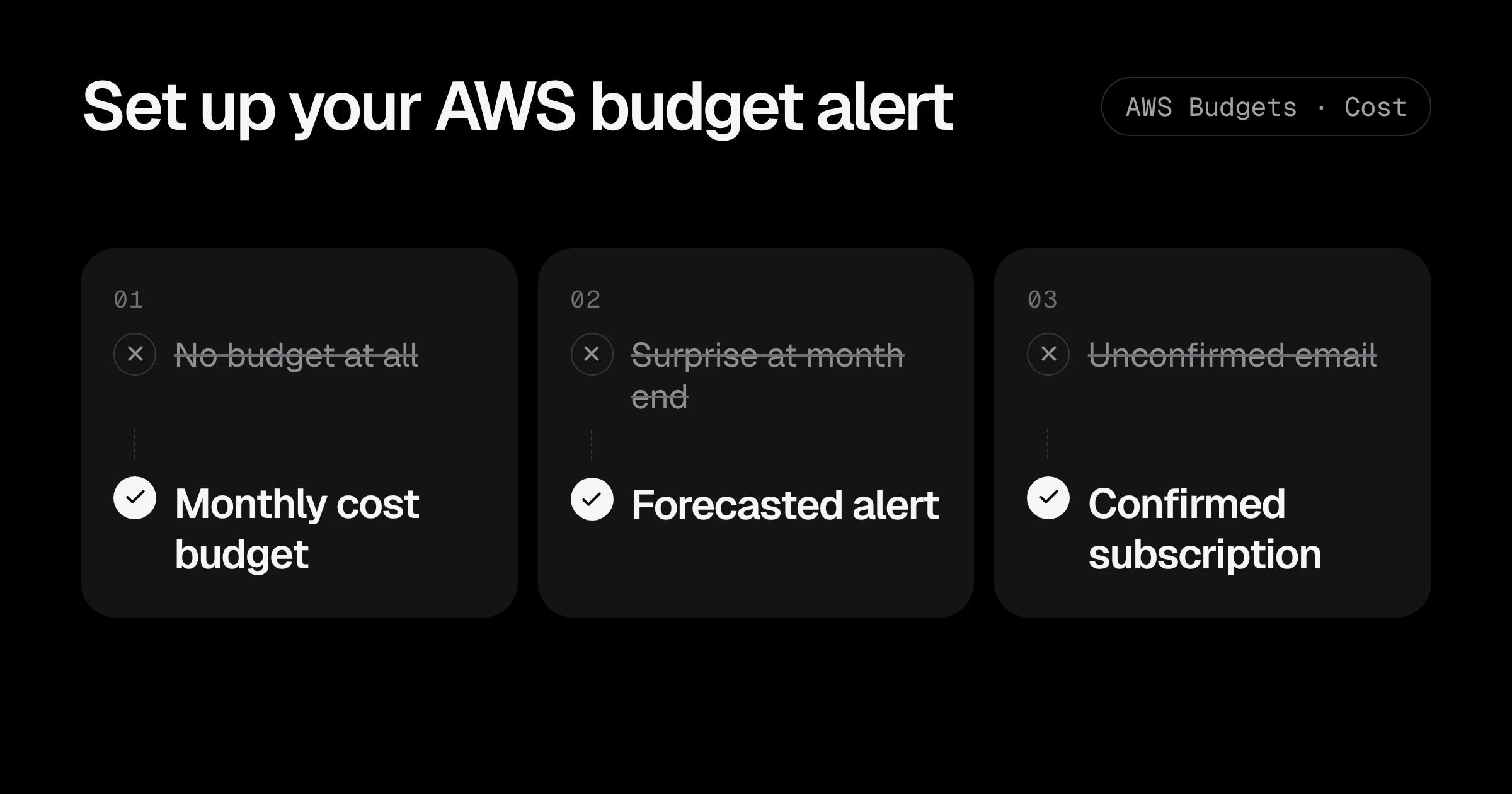
An AWS budget alert is the cheapest insurance on your account: it is free, takes about ten minutes to set up, and tells you before a surprise becomes an invoice. Most startup accounts I look at have no budget at all, or one that emails an address nobody reads.
This post covers what a budget alert can and cannot do, the thresholds I use, how to create it in the console, and the same setup in Terraform. It also covers the part that catches people out: the alert is not instant.
What an AWS budget alert does (and does not)
AWS Budgets lets you set a spending limit for a period and get notified when actual or forecasted spend crosses a threshold. Alerts can go to an email address, to an Amazon SNS topic, or to both.
Three limits are worth knowing before you rely on it:
| Question | Answer |
|---|---|
| Does it stop spending? | No. It only notifies, unless you add a budget action. |
| How fresh is the data? | Updated up to three times a day, usually 8 to 12 hours apart. |
| How many recipients? | Up to 10 email addresses and one SNS topic per alert. |
That second row matters most. If someone leaves a large instance running or a log group floods at 2 a.m., the budget can take half a day to notice. A budget is a safety net for the month, not a smoke alarm for the hour. For the smoke alarm, see AWS alerts: know about outages before your customers do and add CloudWatch alarms on the resources that can run away.
Which budget types exist
Budgets covers more than plain cost. The types are cost budgets, usage budgets, Reserved Instance utilization and coverage budgets, and Savings Plans utilization and coverage budgets. Start with a cost budget. Once you buy commitments, add a Savings Plans utilization budget so an unused commitment does not go unnoticed. If you are considering that step, read Savings Plans for startups first.
The budget period can be daily, monthly, quarterly, annually, or a custom date range. A monthly budget is the right default. A daily budget is useful as a second one, because a day that suddenly costs three times the normal amount shows up quickly.
The thresholds I use
Set one budget for the whole account with these alerts:
| Alert | Type | Why |
|---|---|---|
| 50% of budget | Actual | An early heads-up in the middle of the month |
| 80% of budget | Actual | Time to find out what is driving the bill |
| 100% of budget | Actual | You are over, and need to act now |
| 100% of budget | Forecasted | AWS expects you to exceed it by month end |
Two details change how you read these. An actual alert is sent once per budget per period, when the budget first reaches the threshold, so you will not get repeats if spend keeps climbing. A forecasted alert can fire more than once if the forecast goes above the threshold, drops below it, and goes above it again.
Forecasting also needs history. AWS requires about five weeks of usage data to generate a forecast, and a forecasted alert does not trigger until then. On a new account, the actual alerts are the only ones that work for the first month or so.
How to choose the amount
Take last month’s bill and add roughly 10 percent. If you have no history yet, take your best estimate from the AWS pricing calculator and revisit it after one full month. A budget that is far too high never alerts, and one that is far too low alerts every month until you ignore it. Both are the same failure.
Create a budget alert in the console
- Open Billing and Cost Management, then Budgets, and choose Create budget.
- Under budget setup, choose Customize (advanced), then Cost budget.
- Name it, set the period to Monthly, and enter the amount.
- Add your first alert: choose Actual, enter 80 as a percentage, and add your email recipients.
- Add the other alerts from the table above, including the Forecasted one at 100 percent.
- Create the budget, then open your inbox and confirm any subscription email.
The last step is the one people skip. Email recipients must verify their address before they receive budget notifications. If you use SNS, AWS sends a confirmation email with the subject “AWS Notification - Subscription Confirmation”, and the recipient has to choose Confirm subscription. A budget that emails an unconfirmed address is the same as no budget.
Create it with the AWS CLI
If you prefer a script, the same budget fits in two JSON files. Save this as budget.json:
{
  "BudgetName": "monthly-total",
  "BudgetType": "COST",
  "TimeUnit": "MONTHLY",
  "BudgetLimit": { "Amount": "1000", "Unit": "USD" }
}
And this as notifications.json:
[
  {
    "Notification": {
      "NotificationType": "ACTUAL",
      "ComparisonOperator": "GREATER_THAN",
      "Threshold": 80,
      "ThresholdType": "PERCENTAGE"
    },
    "Subscribers": [{ "SubscriptionType": "EMAIL", "Address": "you@example.com" }]
  },
  {
    "Notification": {
      "NotificationType": "FORECASTED",
      "ComparisonOperator": "GREATER_THAN",
      "Threshold": 100,
      "ThresholdType": "PERCENTAGE"
    },
    "Subscribers": [{ "SubscriptionType": "EMAIL", "Address": "you@example.com" }]
  }
]
Then create it:
aws budgets create-budget \
  --account-id "$(aws sts get-caller-identity --query Account --output text)" \
  --budget file://budget.json \
  --notifications-with-subscribers file://notifications.json
Replace the email address and amount first, and confirm the verification email afterwards.
Create it with Terraform
For anything beyond a personal account, keep the budget in code so it is reviewed like every other change. This creates a monthly budget with the actual and forecasted alerts, sent to an SNS topic:
data "aws_caller_identity" "current" {}

resource "aws_sns_topic" "budget_alerts" {
  name = "budget-alerts"
}

data "aws_iam_policy_document" "budget_alerts" {
  statement {
    effect    = "Allow"
    actions   = ["SNS:Publish"]
    resources = [aws_sns_topic.budget_alerts.arn]

    principals {
      type        = "Service"
      identifiers = ["budgets.amazonaws.com"]
    }

    condition {
      test     = "StringEquals"
      variable = "aws:SourceAccount"
      values   = [data.aws_caller_identity.current.account_id]
    }
  }
}

resource "aws_sns_topic_policy" "budget_alerts" {
  arn    = aws_sns_topic.budget_alerts.arn
  policy = data.aws_iam_policy_document.budget_alerts.json
}

resource "aws_sns_topic_subscription" "email" {
  topic_arn = aws_sns_topic.budget_alerts.arn
  protocol  = "email"
  endpoint  = var.alert_email
}

resource "aws_budgets_budget" "monthly_total" {
  name         = "monthly-total"
  budget_type  = "COST"
  limit_amount = "1000"
  limit_unit   = "USD"
  time_unit    = "MONTHLY"

  dynamic "notification" {
    for_each = [50, 80, 100]
    content {
      comparison_operator       = "GREATER_THAN"
      threshold                 = notification.value
      threshold_type            = "PERCENTAGE"
      notification_type         = "ACTUAL"
      subscriber_sns_topic_arns = [aws_sns_topic.budget_alerts.arn]
    }
  }

  notification {
    comparison_operator       = "GREATER_THAN"
    threshold                 = 100
    threshold_type            = "PERCENTAGE"
    notification_type         = "FORECASTED"
    subscriber_sns_topic_arns = [aws_sns_topic.budget_alerts.arn]
  }
}

variable "alert_email" {
  type = string
}
Two things to remember after terraform apply. The email subscription stays pending until the recipient confirms it, and the budget needs the topic policy above, or it cannot publish to your topic. Run terraform plan before you apply, and set alert_email in a tfvars file that stays out of git.
To watch one service separately, add a cost_filter block to a second budget. For example, a filter named Service with the value Amazon Elastic Compute Cloud - Compute creates an EC2-only budget. The same pattern works for any service name that appears in your Cost Explorer.
Budget actions: from alert to action
A notification tells you something went wrong. A budget action can respond for you, for example by applying a restrictive IAM policy or stopping specific instances once a threshold is crossed. The first two action-enabled budgets are free each month, and each additional one costs $0.10 per day.
Treat actions with care. They need two sets of permissions to work: the user setting them up must be allowed to pass a role to Budgets, and Budgets must be allowed to run the action. And if you stop an EC2 instance that belongs to an Auto Scaling group, the group simply starts it again or launches a replacement, so a stop action alone does nothing there. For most small accounts, a clear alert and a person who reads it is the better first step.
Three mistakes I see
| Problem | Fix |
|---|---|
| No budget at all | One monthly cost budget with actual alerts at 50, 80 and 100 percent |
| Alert goes to an unconfirmed address | Confirm the email or SNS subscription and send a test |
| The only alert is at 100 percent | Add 50 and 80, and a forecasted alert |
Budgets also does not replace looking at where the money goes. Tags help you control access to budgets, but AWS Budgets does not support tags for cost allocation, so for per-team costs you still need Cost Explorer with activated cost allocation tags. AWS also offers Cost Anomaly Detection, a separate service that flags unusual spending patterns, where a budget compares against a number you chose.
AWS budget alert checklist
- Create one monthly cost budget for the whole account.
- Add actual alerts at 50, 80 and 100 percent, and one forecasted alert at 100 percent.
- Send alerts to a mailbox people read, or an SNS topic that reaches chat.
- Confirm every email and SNS subscription, then check that a test arrives.
- Put the budget in Terraform so changes are reviewed.
- Add CloudWatch alarms for resources that can run away within hours.
- Review the amount every quarter, or after any large change in usage.
When an alert does fire, start with the three quick wins and the hidden charges that bill you for nothing. Two of the most common surprises are NAT gateway charges and CloudWatch Logs ingestion. If you would like someone to look through your account and find where the money goes, the Free AWS Review is a good place to start.
Details are from the AWS documentation for managing costs with AWS Budgets, creating a cost budget, AWS Budgets best practices and AWS Budgets pricing, checked in November 2026. The Terraform resource is aws_budgets_budget.
Common questions
Is an AWS budget alert free?
Yes. Creating budgets and receiving notifications costs nothing. The first two budgets that use budget actions are free each month, and each additional action-enabled budget costs $0.10 per day. Emailed budget reports cost $0.01 each.
Why did my AWS budget alert arrive late?
Budgets reads billing data that is updated up to three times a day, usually 8 to 12 hours apart. Your alert is sent on that cadence, so a spike can sit unnoticed for several hours. For faster signals, add CloudWatch alarms on the specific resource, such as NAT gateway bytes or log ingestion.
Does an AWS budget stop my spending when it hits the limit?
No. A budget only sends notifications. To act on a threshold you add a budget action, for example to attach a restrictive IAM policy or stop certain instances, and that action needs permissions set up first.
Why is my forecasted budget alert not firing?
AWS needs about 5 weeks of usage data before it can forecast, and a forecasted alert does not trigger until then. On a new account, rely on actual alerts at lower thresholds for the first month or two.
How many people can get one budget alert?
Each alert can notify up to 10 email addresses and one Amazon SNS topic. Email recipients must verify their address before they receive anything, and an SNS subscription has to be confirmed too.
Want this set up for your team?
I build this kind of infrastructure for startups and small teams, with fixed prices and full handover.