How to reduce your AWS bill: 3 quick wins that break nothing
Reduce AWS costs without touching your app: delete idle resources that still bill you, let old data expire, and set a budget alert before the invoice.
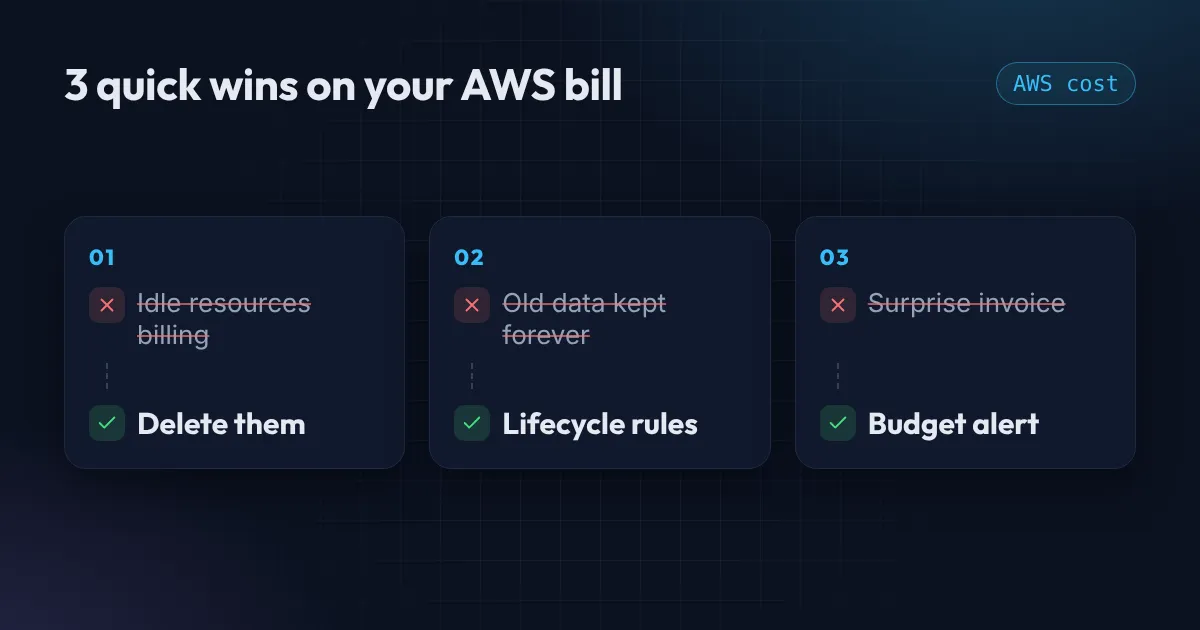
You do not need a big cost-optimization project to reduce your AWS bill. For most small accounts, three habits remove the majority of the waste, and none of them touches your running application.
Quick win 1: Delete idle resources that still bill you
Some resources keep charging even when you think they are off.
- Stopped EC2 instances. You stop paying for compute, but the attached EBS volume still costs money every month.
- Unattached EBS volumes. Volumes left behind after an instance was deleted keep billing until you remove them.
- Public IPv4 addresses. Since February 2024, AWS charges for every public IPv4 address, about $0.005 per hour (roughly $3.60 a month), whether it is attached to something or not.
- NAT gateways. Often around $30 or more per month each, plus data processing charges, even when traffic is low.
You can find the first two from the command line:
# Unattached EBS volumes
aws ec2 describe-volumes \
  --filters Name=status,Values=available \
  --query 'Volumes[].[VolumeId,Size,CreateTime]' --output table

# Elastic IPs not attached to anything
aws ec2 describe-addresses \
  --query 'Addresses[?AssociationId==null].[PublicIp,AllocationId]' --output table
Snapshot anything you are unsure about, then delete. For a full walkthrough of finding these leftovers in every region, see 3 AWS charges billing you for nothing. While you are in there, convert old gp2 volumes to gp3: it is 20% cheaper per GB and the change needs no downtime. The steps, including the big-volume trap, are in gp2 vs gp3: switch EBS volumes, save 20%.
For development and test servers, schedule them to stop at night and on weekends. A server that runs 50 hours a week instead of 168 costs about 70% less on compute.
Quick win 2: Add lifecycle rules so old data expires
Storage is cheap per gigabyte, which is exactly why it grows unnoticed. Old object versions, log files, and temporary uploads pile up for years.
A lifecycle rule tells S3 to clean up for you:
resource "aws_s3_bucket_lifecycle_configuration" "logs" {
  bucket = aws_s3_bucket.logs.id

  rule {
    id     = "expire-old-data"
    status = "Enabled"
    filter {}

    noncurrent_version_expiration {
      noncurrent_days = 30
    }

    transition {
      days          = 90
      storage_class = "GLACIER"
    }

    expiration {
      days = 365
    }

    abort_incomplete_multipart_upload {
      days_after_initiation = 7
    }
  }
}
This keeps old versions for 30 days, moves logs to cheaper archive storage after 90 days, deletes them after a year, and clears out failed uploads. Adjust the numbers to your retention needs, and check any compliance rules before you delete anything.
Quick win 3: Set a budget alert
The first warning about a cost problem should not be the invoice. AWS Budgets is the simplest fix:
- Open AWS Budgets and create a monthly cost budget at an amount that would surprise you, for example $50.
- Add an alert at 80% of the budget to your email. AWS explains every option in Managing your costs with AWS Budgets.
- Add a second alert for forecasted spend so you hear about it before the month ends.
Budgets that only send alerts are free. For extra safety, turn on Cost Anomaly Detection, also free, which flags unusual spikes without you setting a threshold.
Reduce your AWS bill every week: a five-minute routine
- Open Cost Explorer and group the last month by service.
- Look at the top three. Does each one make sense?
- Run the two commands above and delete what you find.
Most savings come from the habit, not from any one change.
Checklist to reduce AWS costs
- No unattached volumes or unused public IPs.
- Dev and test servers stop outside working hours.
- Lifecycle rules on buckets that collect logs or old versions.
- A monthly budget with an 80% alert.
- Cost Anomaly Detection turned on.
To see how much of your own bill might be waste, try the free AWS savings estimator. Tick what applies and it gives you a rough monthly range.
The short video is on the channel. If you want someone to review your account and show where the money goes, my Free AWS Review covers cost as well as security, or get in touch.
Want this set up for your team?
I build this kind of infrastructure for startups and small teams, with fixed prices and full handover.