How to unlock Terraform state (force-unlock) and recover it
Stuck on "Error acquiring the state lock"? Find the lock ID, check it is safe, run terraform force-unlock, and roll back a bad state from S3 versioning.
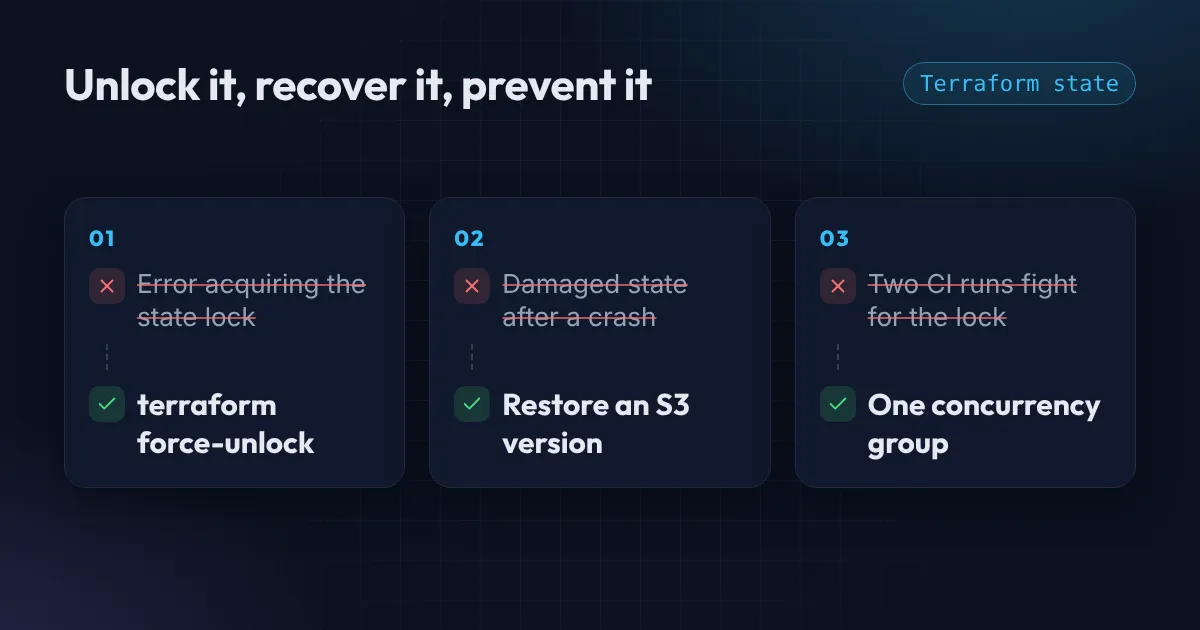
To unlock Terraform state, copy the lock ID from the error message, make sure no other terraform apply is still running, and run terraform force-unlock LOCK_ID. That is the whole fix for most stuck locks. The rest of this post shows how to find the ID, when unlocking is safe, what to do when the lock lives in S3 or DynamoDB, and how to recover if the state itself is damaged.
If you have not set up a remote backend yet, start with Terraform remote state on S3 with KMS and locking. This post is for when that setup is already running and something went wrong.
Why Terraform locks the state
Every plan and apply takes a lock on the state before it reads it. The lock stops two runs from writing the same state at the same time, which is how state gets corrupted. When the run finishes, Terraform removes the lock.
A lock gets “stuck” when the run that took it never finished cleanly:
- you pressed Ctrl+C during an apply, or your laptop went to sleep
- a CI job was cancelled or timed out halfway
- the network dropped while Terraform was writing state
The next run then fails with this:
Error: Error acquiring the state lock

Lock Info:
  ID:        6f1c2a9e-0b3d-4c7e-9a51-2d8f4e7b1c90
  Path:      my-company-tfstate/prod/terraform.tfstate
  Operation: OperationTypeApply
  Who:       runner@fv-az123-456
  Version:   1.12.2
  Created:   2026-10-31 09:14:02 UTC
Step 1: get the lock ID and check who holds it
The ID line is the lock ID you need. Before you unlock anything, read the Who and Created lines:
- Who tells you which machine or CI runner took the lock.
- Created tells you when.
If the lock is a few seconds old, someone is probably applying right now. Wait. If it is from a CI job you can see was cancelled, or from your own terminal that crashed an hour ago, it is stale and safe to remove.
When a lock is only busy, not stuck, you do not need to unlock at all. Tell Terraform to wait for it instead:
terraform apply -lock-timeout=5mStep 2: unlock Terraform state with force-unlock
From the same folder (so Terraform uses the same backend), run:
terraform force-unlock 6f1c2a9e-0b3d-4c7e-9a51-2d8f4e7b1c90Terraform asks you to confirm, then removes the lock. Add -force to skip the question in a script, but only when you are certain nothing else is running.
Then run terraform plan before anything else. If the interrupted apply changed some resources but did not finish, the plan shows you what is left.
Never unlock by deleting or editing terraform.tfstate. The lock is separate from the state. Touching the state file does not remove the lock, and it can destroy the record of your infrastructure.
Where the lock lives (if force-unlock cannot reach it)
force-unlock works for almost everyone. If it fails, for example because the CI role that took the lock is the only one allowed to delete it, you can remove the lock where it is stored.
S3 native locking (use_lockfile = true, Terraform 1.10 and later). The lock is a small object next to your state, with .tflock added to the key. You can read it to see the lock ID and owner:
aws s3 cp s3://my-company-tfstate/prod/terraform.tfstate.tflock -Deleting that object removes the lock. Use this only after the same checks as Step 1.
DynamoDB locking (the older setup). The lock is an item in your lock table whose LockID is bucket/key, for example my-company-tfstate/prod/terraform.tfstate. Delete that one item to remove the lock. Leave the item ending in -md5 alone: it is a checksum of the state, not a lock.
Step 3: recover a damaged state from S3 versioning
Sometimes the interrupted run did more than leave a lock. If terraform plan now wants to recreate resources that clearly exist, the state was damaged. With versioning on the bucket, you can roll back:
- List the versions of the state file:
aws s3api list-object-versions --bucket my-company-tfstate --prefix prod/terraform.tfstate - Pick the last version from before the problem (check
LastModified). - Download it and copy it back as the current version:
aws s3api get-object --bucket my-company-tfstate --key prod/terraform.tfstate \ --version-id <VERSION_ID> good.tfstate aws s3 cp good.tfstate s3://my-company-tfstate/prod/terraform.tfstate - Run
terraform planand check that it shows what you expect.
Before any risky state work, keep a local copy too: terraform state pull > backup.tfstate. It costs one second.
If the bucket has no versioning, you cannot roll back. You will be using terraform import to rebuild the state one resource at a time. Turn versioning on today.
“Reset” Terraform state: what people usually mean
There is no single reset command, and that is a good thing. Pick the one that matches the problem:
- Terraform points at the wrong backend:
terraform init -reconfigure. - A resource was deleted by hand and Terraform still tracks it:
terraform state rm <address>. - A resource exists but Terraform does not know about it:
terraform import <address> <id>, or animportblock in your code.
Never delete the whole state to “start fresh” on real infrastructure. Terraform would try to create everything again.
Stop it happening again
- In CI, do not let two runs overlap. In GitHub Actions, put a
concurrencygroup on the Terraform job so a second push waits instead of fighting for the lock. - Do not cancel a running apply. Let it finish, then fix forward.
- Keep state remote, locked, versioned and encrypted. The full setup is in my remote state on S3 with KMS post.
Checklist
- Read the lock ID, Who and Created lines before doing anything.
- Busy lock: wait with
-lock-timeout. Stale lock:terraform force-unlock LOCK_ID. - Run
terraform planstraight after unlocking. - Damaged state: roll back the last good version from S3 versioning.
- Add a
concurrencygroup to CI so this does not happen again.
Short on time? The 45-second version covers the three state fixes. HashiCorp documents every option in the force-unlock command reference. For more traps, read 3 Terraform mistakes that cost me hours. And if you want someone to look over your Terraform setup, see Terraform consulting.
Want this set up for your team?
I build this kind of infrastructure for startups and small teams, with fixed prices and full handover.